Managing Shifts
About this task
Custom shifts in SOTI XSight offer several benefits for data analysis and dashboard insights:
-
Targeted Data Analysis: By defining shifts that align with specific operational hours or employee work schedules, you can focus on data from those relevant time frames, ensuring accurate and meaningful insights.
-
Performance Monitoring: Custom shifts help track performance metrics, such as app usage or device activity, during predefined periods. This is especially useful for evaluating productivity across different shifts.
-
Enhanced Reporting: Dashboards, like the App Usage - Shift, become more insightful when tailored to specific time frames. You can easily compare data between shifts or time periods.
-
Operational Planning: Analyzing trends and patterns during custom shifts aids in optimizing resources, planning staffing requirements, and scheduling maintenance or updates.
-
Adaptability: Businesses with flexible or varying schedules can use custom shifts to adapt dashboards and reports to their unique operational needs.
Accessing Shifts - Alternate Method
Procedure
- Log into the SOTI XSight web console as administrator.
-
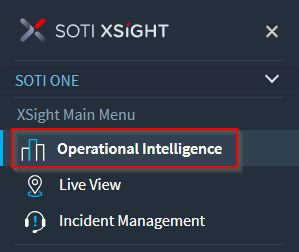
From the main menu, select Operational
Intelligence.
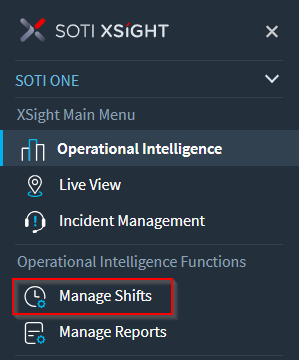
- Open the main menu again.
-
Select Manage Shifts.
Accessing Shifts - Alternate Method
Procedure
- Log into the SOTI XSight web console as administrator.
-
From the main menu, select Operational
Intelligence.
-
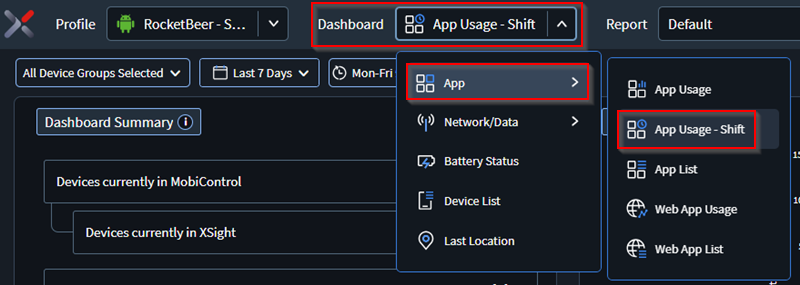
From Dashboard dropdown, select .
-
Select Shift.
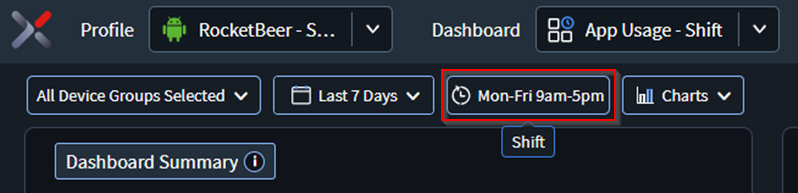
-
Select Manage Shifts.
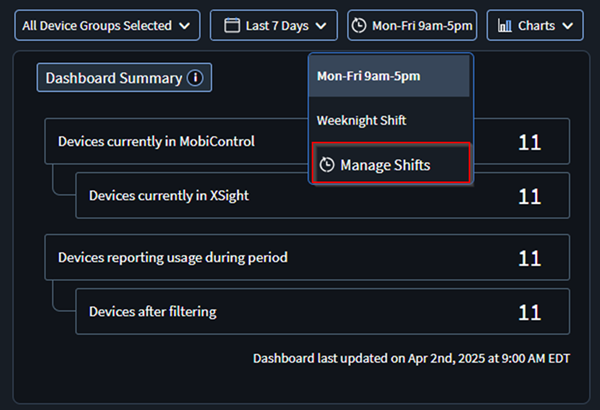
Creating a New Shift
Procedure
- Use one of the methods above to access Manage Shifts,
-
In the Define a Shift panel, select the icon.
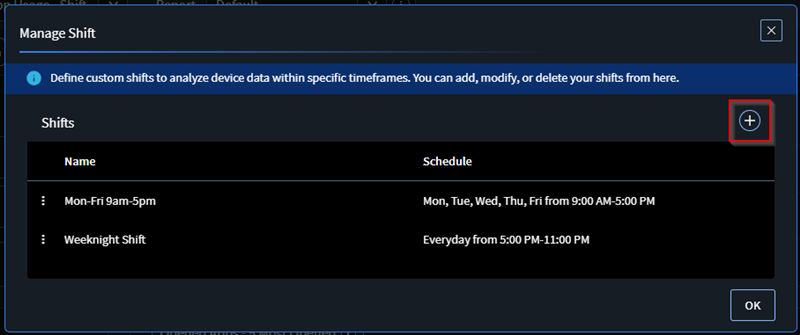
-
In the Add a Shift panel, enter a Shift
name for the shift.
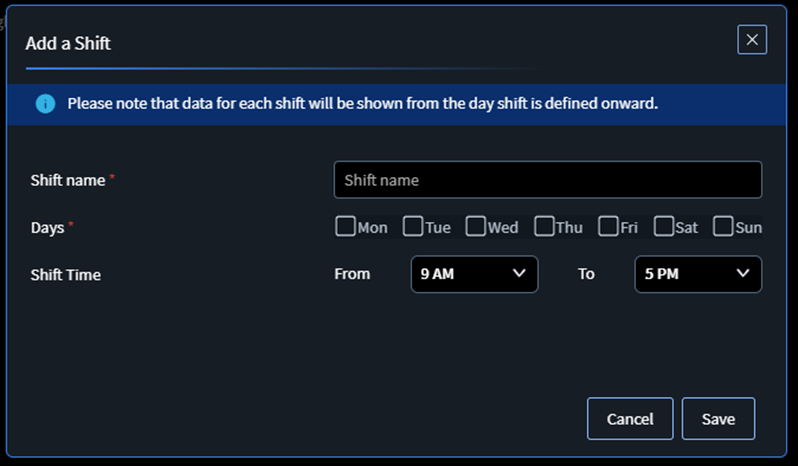
- Select the Days of the week that correspond to the shift.
- Select the Shift Time (the hours) for the shift.
- Select Save.
Editing a Shift
Procedure
- Access the Define a Shift panel. (See Accessing Shifts - Alternate Method or Accessing Shifts - Alternate Method).
-
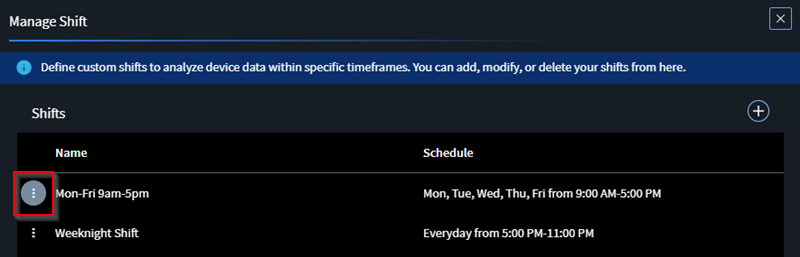
Hover over the row that has the shift you want to edit and select the icon.
-
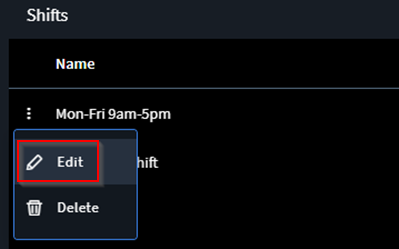
Select Edit.
-
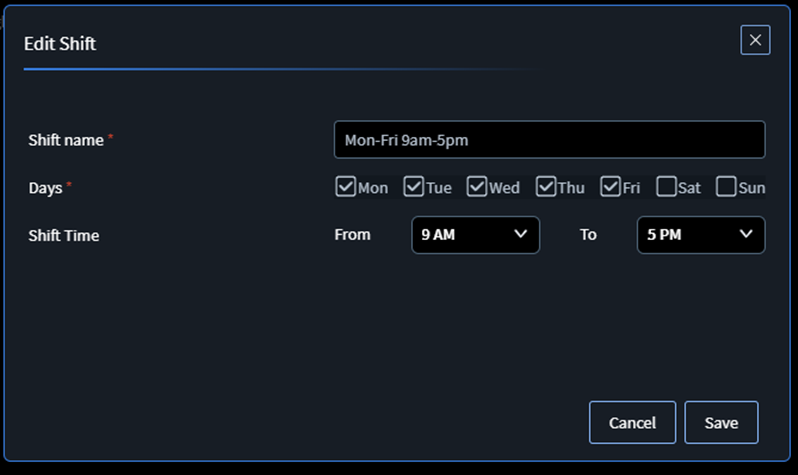
Edit the shift information.
- Select Save.
Deleting a Shift
About this task
Procedure
- Access the Define a Shift panel. (See Accessing Shifts - Alternate Method or Accessing Shifts - Alternate Method).
-
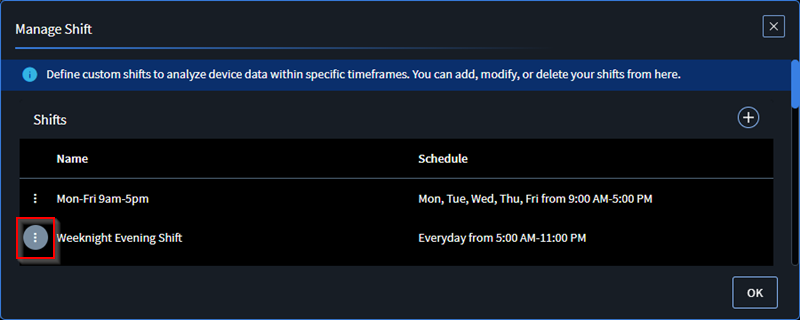
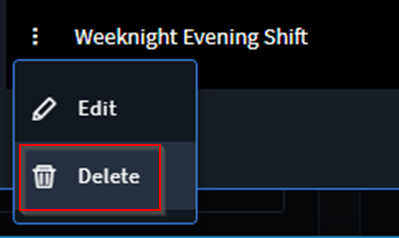
Hover over the row that has the shift you want to delete and select the icon.
-
Select Delete.
-
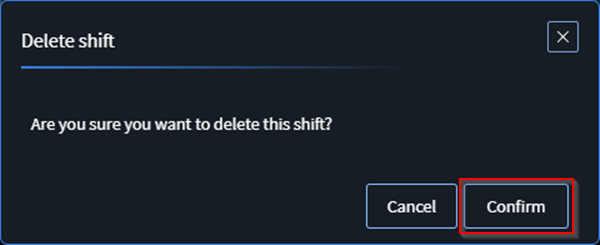
In the Delete Shift pop-up select
Confirm.